How do I know my donation gets to the nonprofit?
To provide our users with the peace of mind to donate and engage with confidence, Nobleis has partnered with Make My Donation Inc., a world leader in facilitating charitable giving, to grant distribution to the 1.5 million US-based charities offered on our app.
Make My Donation, a 501(c)3 non-profit organization, operating a donor-advised fund, holds State by State compliance and builds trust by providing a layer of transparency to our users, knowing that all contributions get disbursed to designated charities promptly.
Users are also welcome to contact the charitable contribution after their contribution within 30 days to confirm that the non-profit received their charitable donation.
Please visit our blog concerning charitable disbursement for more information.
Make My Donation, Inc.
EIN#: 474068817
4285 SW Martin Hwy,
Palm City, FL 34990
Telephone: 772-210-2678
E-mail: info@MakeMyDonation.org
What are Nobleis Events?
Nobleis offers virtual as well as local dating and networking events where you can meet socially conscious people in your city who share common interests.
If you are looking for meaningful connections as a whole—whether that’s in love, friendship, or business, there is a Nobleis event for you.
To see if any local events in your area match your interests, please click on Events under < Settings page.
Events are tailored for you based on your dating or networking mode, discovery distance under search Filter, your gender, and the gender(s) you are interested in connecting with.
You may also visit https://nobleis.com/events/ to see all upcoming events.
Is Nobleis free to use?
Nobleis is 100% free to use. We offer no subscription, no up-sale, no daily search limits, and no gimmicks. All features are available to all users from the get-go. Nobleis is risk free and result based.
You only pledge to donate your bid amount in the event your bid gets accepted or if you accept an offer to donate and match with someone that has shown interest in you. You may also decide to support a charity for the kindness of your heart.
What is Nobleis?
Nobleis is a connection app that raises money for accredited 501c3 nonprofits through dating and networking. It's designed for socially conscious people seeking to connect with like-minded individuals in their area or around the globe.
How is Nobleis different than a charity auction?
Nobleis uses a sealed-bid type charity auction process to ensure confidentiality, where no bidder knows who the other bidders are or how much the other auction participants have bid.
Unlike traditional silent auctions, where the highest bidder is declared the winner, our patent-pending technology empowers users to select which bidder(s) they want to match with by accepting the bid amount to benefit their favorite charities. In other words, users are unrestrained to match with multiple bidders or no bidder at all, regardless of the bid amount.
Even Though charity auction listings don’t expire unless the user pauses their account, charity bids auto decline in 24 hours if not Accepted or Countered.
Users make a financial pledge to donate the bid amount if their bid gets accepted.
Bid with confidence, the pledge to donate is null and void if a user’s bid gets declined or users requests to unmatch within one week from the time of accepting a bid.
Why Nobles asks about race & ethnicity?
Our identity is significantly influenced by our ethnicity. On Nobleis, we also want everyone to feel noticed and represented.
You may select an ethnicity that most accurately reflect your creed. It is entirely up to you whether you want to keep things private or share them on your profile. Racial and ethnicity question is optional.
In order for us to better represent the varied populations we serve and better celebrate them, it is helpful if you can tell us how you identify.
Please contact us if you're unable to find the option you're looking for. At Nobleis we put inclusivity first.
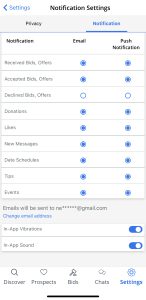
How can I change my notification settings?
To edit which notifi
cations you wish to receive from the Nobleis app:
- Tap the < Settings page at the bottom left of the app
- Tap the Notifications
There, you can change Email and Push Notification settings.
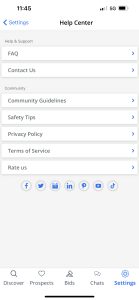
What is Nobleis Help Center?
Nobleis Help Center can be accessed from the < Settings page. You can go ahead and access this FAQ page from the Help Center, or you can contact us for help.
Community guide links are also available for your review. You may also rate the Nobleis app using the Rate Us link.
A link to all Nobleis' social media accounts is at the bottom of the Help Center page.
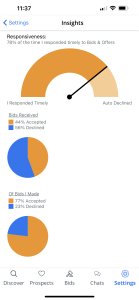
What are Insights?
Insights gives you an overview to help you understand your performance on Nobleis based on data analytics.
Insights can be accessed from < Settings page.
How does Invite A Friend work?
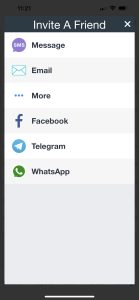
Under < Settings page there is an option to Invite A Friend.
There you may share a unique link invite link to Nobleis app with a friend based on the apps you already have installed on your phone such as:
- SMS Message
- Telegram
and more.
Can I change my name being displayed?
When you first register, we ask you to enter your full name. But only your first name is displayed on your profile.
By going to Settings > Privacy You may choose to only display the first initial of your first name for privacy reasons.
But if you want to change your displayed name, you may do so at Settings > Charity Info Page by updating your charity payment info and your full name.
Nobleis' inclusive gender options
In order to provide everyone in our community a sense of positivity and empowerment, we at Nobleis are entirely committed to and passionate about establishing a safe and inclusive space. Every new connection begins with being able to show up as your real self, as gender is specific to every one of us.
Nobleis advocates for lesbian, gay, bisexual, transgender, and queer (LGBTQ) acceptance by helping provide a platform where people of all genders may feel secure and seen. Our platform allows people of all sexual orientations to express themselves more effectively in ways that most accurately represent who they are by sharing more information about their gender identities and sexual orientations.
Choose how you identify
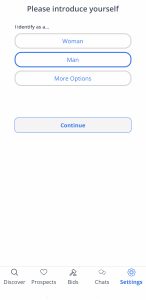
When creating a new profile, new members can choose their gender identity upon registration by selecting 'More Options' when presented with 'I identify' as a man, woman, or More Options.
Existing members are able to update their gender identity at any time by clicking on Complete Profile in the Settings page. Please note if existing users change their gender, they can only change it again one more time, and won't be able to change it back.
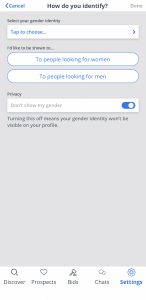
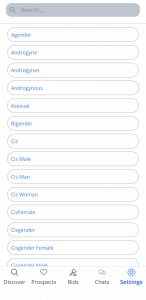
- When "More Options" is chosen, a prompt asking you to "Select your gender identity" appears. Here, you can select from a variety of extended gender identities.
- You then choose if you like your profile to be shown to People looking for women or men.
- You can choose from this point whether you want to display your gender identity on your profile. You can flip the button off if you'd prefer your gender identity to remain a secret.
Please contact us if you don't see an option that you can identify with.
What is Apple Sign-In?
You may create a Nobleis profile and sign in with your Apple ID by utilizing Apple Sign-In. The steps to using this approach are as follows:
- On the sign-in screen, click "Continue with Apple."
- Use your preferred method to confirm (e.g. Face ID)
- Create a Nobleis profile, or if you're already a member, start bidding!
To make it simpler to log back in, kindly take note that you can now add additional login ways to your account.
Is Facebook the only way to sign up?
Nope! You can register and log in as a new user using your phone number, Facebook account, or Apple ID.
We advise importing your name, age, and other information from Facebook to help you create your profile. This expedites the registration process and guarantees that the data on your profile is accurate and trustworthy. Of course, you should select the approach that works best for you.
For increased security, you can now add numerous login options to your profile.
Where can I download Nobleis?
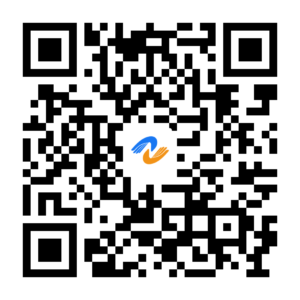
You can download the Nobleis app from the Apple App Store and the Google Play Store. You may also click on or scan the QR code below to download the Nobleis app.
How do I connect my Instagram account to my profile?
There are two ways to connect your Instagram account to your Nobleis profile:
A) On the Settings page, tap on the Complete icon.
On the bottom of editing your profile, click on Connect Instagram.
B) On the Settings page, tap on Verify Account.
Then click on Connect Instagram
After successfully logging into your Instagram account, your Instagram account will be connected and display on your profile.
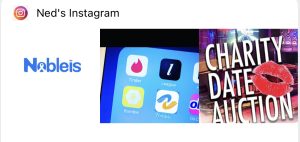
If you no longer want display all of your Instagram photos on your profile, simply click on x across from Instagram Connected to unconnect.
How do I connect my Spotify account to my profile?
There are two ways to connect your Spotify account to add top artists to your Nobleis profile:
A) On the Settings page, tap on the Complete icon.
At the bottom of editing your profile, click on Connect Spotify.
B) On the Settings page, tap on Verify Account.
Then click on Connect Spotify
After successfully logging into your Spotify account, your Spotify account will be connected and your top artists will display.
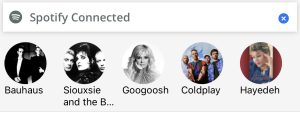
If you no longer want all of your top artists to appear in Spotify, simply click on the x across from Spotify Connected to unconnect.
Do I need to add a secondary login method to my Nobleis account?
In order to protect your data if your phone number changes and to help you quickly regain access to your account in the event that your phone is lost, stolen, or broken—or for any other reason you lose access to your text messages—if you log into Nobleis using your phone number as your login method, you must also add a secondary login method (either Facebook or Apple ID).
It's crucial to update your phone number as quickly as possible in the app if it has changed. Phone companies regularly recycle unused numbers, so if your old number is given to a new person, they may have access to your information.
You will be able to log in even if your phone number has changed by setting a backup login option. If you choose the backup login option while logging in, you may access your account even if you have a new phone number. Once you have logged in to the app, take the following actions to update your phone number:
Click on the Settings tab, followed by the Verify Account tab. Update >your phone number with a new one.
Unfortunately, you won't be able to log in if your phone number has changed and you haven't added a backup login option. In which case, you would need to contact us to prove you are the account owner and have the authority to make such a request. Our team will need to validate your identification as part of this procedure.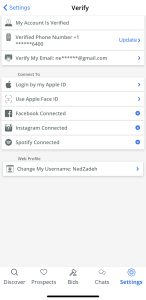
I made a new profile by mistake, how do I get back into my original account?
If you unintentionally created a new profile, you can easily get back into your previous account by following a simple workaround. Just adhere to the guidelines below:
- Tap the Settings
- Scroll to the bottom and select “Deactive account”
- Confirm to deactivate your account
When your new account has been deleted, log in by utilizing the opposite approach that you did before (e.g., if you used your phone number, try logging in with Facebook)
To prevent accidentally creating a new profile, we advise enabling numerous login options for your account.
You can contact us here if you are still having problems and can not log back into your original account.
When I log in my profile is blank. What’s happening?
It can be upsetting to log in and discover that your profile is blank and that all of your connections are gone, but don't worry, following the steps below should fix the issue.
We've discovered that generally, this problem is just the result of selecting the incorrect sign-in method. Try the following steps to see whether this is the case:
- Click on the Settings tab.
- Scroll to the bottom and select “Log Out.”
- Log in using the opposite method you previously tried (e.g., if you used your phone number, try logging in with Facebook).
Additionally, the app might be creating a new profile rather than directing you to your old account if you have changed your Facebook login information (the email you use to access Facebook). With this, our team can assist! Contact us and let us know that your email needs to be updated (you may be asked to provide identification in order to protect your personal information).
Why is my photo been moderated?
To keep our community protected and safe, all photos and videos get moderated to ensure they comply with our Terms of Use.
If your uploaded photo or video violates our Terms of Use or Community Guidelines, it will be removed by our photo moderation team for one of the following reasons:
- Your photo contains erotic content
- Your photo is of someone under 18 by themselves
- Your photo contains a watermark, a caption, or text laid over it
- You uploaded a photo of someone who is not you
- Your photo contains weapons, firearms, or illegal drugs
- Your photo doesn't match your other photos
- Your photo is of a different gender than your profile gender
Nobleis may request a selfie to confirm your identity after your photo has been moderated.
How can I crop my photo?
Once you upload a photo at the time of registration or on Settings > Edit Profile, you may crop your photo as desired by resizing the white bordered box.
If you are unhappy with your cropped size, you may delete your photo and upload again.
Why should I enter my full name?
Even though we would never display your last name to our community, we highly recommend you enter your full name, first name, and last name at the time of registration. Entering your last name is not mandatory.
In case, you decide to make a charitable contribution, your full name will be displayed on the official tax-deductible email receipt as proof of your charitable contribution.
How old do I need to be to use Nobleis?
To become a member of Nobleis, you’ll need to be 18 years of age or older. If you are under 18 years of age, your profile will be blocked for being underage.
My age is wrong on my profile. How can I fix it?
If your age is displaying incorrectly, you'll need to contact us with your correct date of birth and include in your message that you need to update your age. Please provide your email address, full name, phone number, and the incorrect birthday so we may fix it for you.
My location is wrong. How can I fix it?
We're here to help if your location isn't showing up correctly because we know it's essential to creating fantastic connections on Nobleis. Depending on your device, follow the troubleshooting methods listed below.
| iOS: | |
| If that doesn’t work, you try these next troubleshooting steps:
|
Android:
- Delete the Nobleis app and re-download it
- Check to make sure your phone's location services are turned on for Nobleis. Each Android phone works slightly differently, but these instructions should help
- Restart your phone by turning it off and back on
You can contact us here if you've done these instructions but are still having problems.
Nobleis not loading. How can I fix it?
When opening the app, you see the animated hands spinning indefinitely; that's a sign that there is an issue. The best way to resolve the issue is to reinstall the app.
- Delete the Nobleis app and re-download it
- Check to ensure your phone's location services are enabled for Nobleis.
You can contact us here if you've reinstalled the app but are still having problems.
When I log in my profile is blank. What’s happening?
It can be upsetting to log in and discover that your profile is blank and that all of your connections are gone, but don't worry, by following below steps should fix the issue.
We've discovered that generally, this problem is just the result of selecting the incorrect sign-in method. Try the following steps to see whether this is the case:
- Click on the Settings tab.
- Scroll to the bottom and select “Log Out.”
- Log in using the opposite method you previously tried (e.g. if you used your phone number try logging in with Facebook).
Additionally, the app might be creating a new profile rather than directing you to your old account if you have changed your Facebook login information (the email you use to access Facebook). With this, our team can assist! Contact us and let us know that your email needs to be updated (you may be asked to provide identification in order to protect your personal information).